Blog The Social Home team
A board for the kitchen wall, and a map that knows your places
The household dashboard puts the day, the household chat and who's where on a wall-mounted tablet, with a picture view for kids and a privacy lock for guests. Zones give your household its own places, synced from Home Assistant if you like. All in Social Home 2026.10.13.
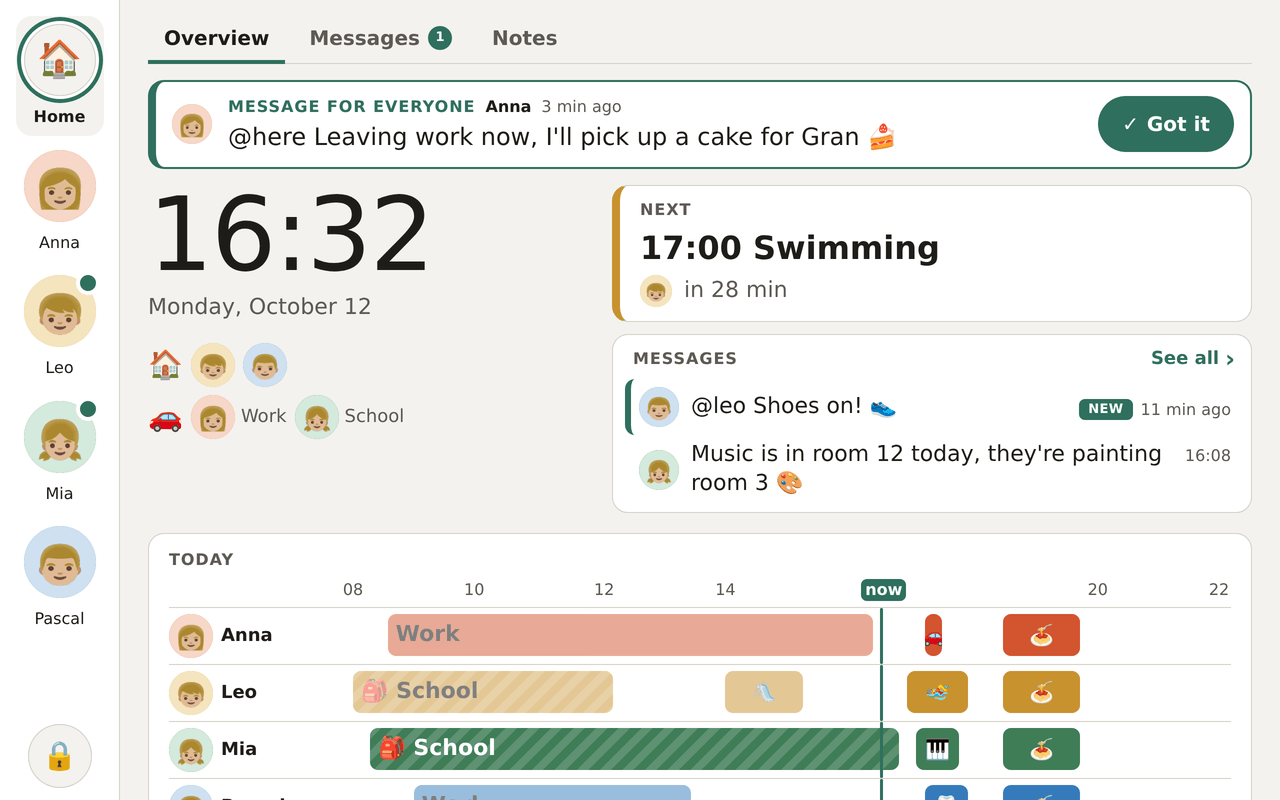
It’s half past four on a Monday. Anna is leaving work and picking up a cake for Gran. Mia’s music lesson moved to room 12, Leo’s swimming starts at five, and someone still has to find the swim bag. Nobody wants to unlock a phone to find all that out.
So Social Home now has a household dashboard: a calm board for a tablet on the kitchen wall or in the hallway. It shows the day at a glance, the messages that matter right now, and, new this week, a map of who’s where. Behind the map are zones, the places your household knows by name: Home, School, Work, Gran’s.
All screens below show a sample household: Anna, Pascal, Mia (11) and Leo (6), on a weekday afternoon in Zürich.
The whole household at a glance
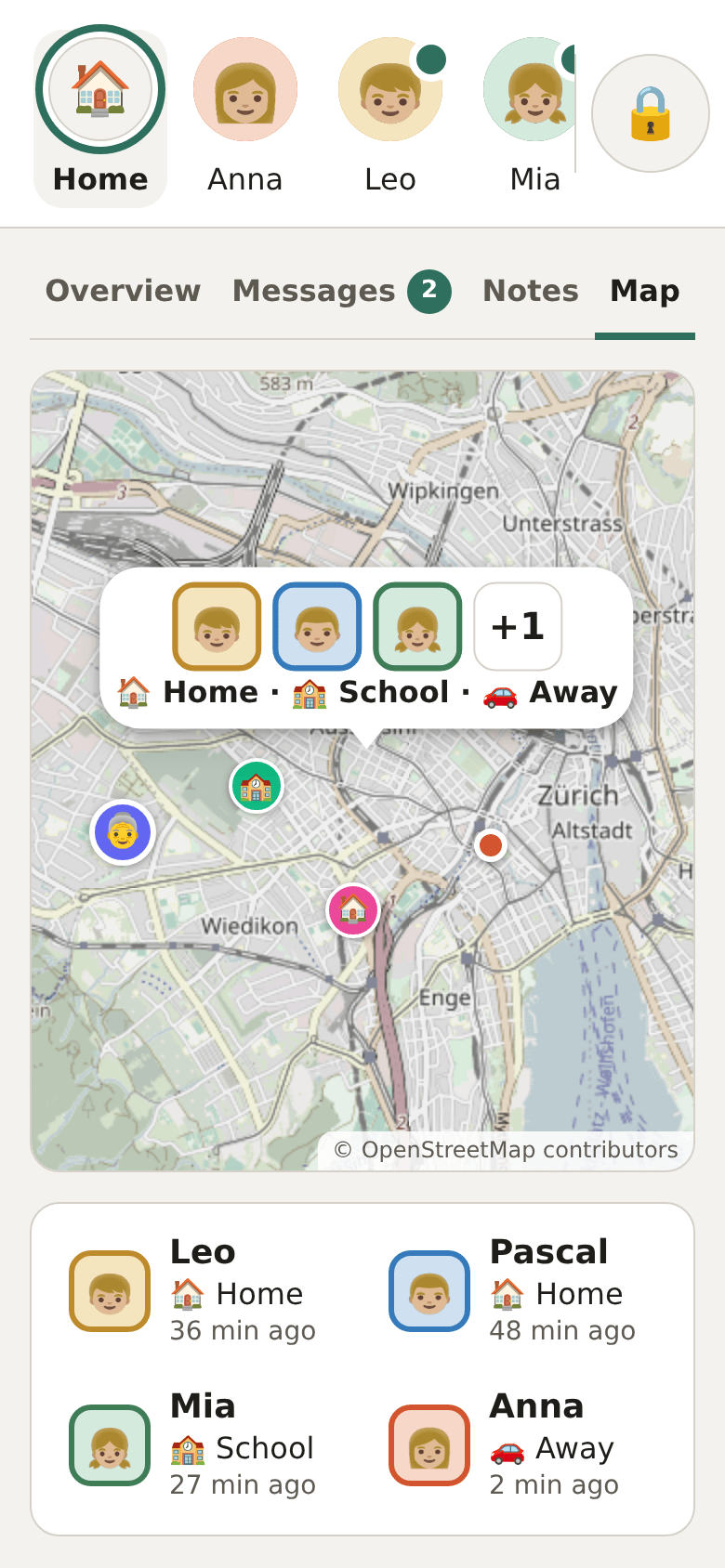
The Overview is the board you see when you walk past: a big clock and the date, what’s Next (or what’s first Tomorrow in the evening), who’s home and who’s out, and a lane for each person’s day with a “now” marker. School lessons come from each child’s timetable, and today’s changes are spelled out: cancelled, moved to another room, or added. Chores, the shopping list and notes fill the rest. On a phone or a tablet hung upright, the same board becomes one column.
The board updates by itself every 30 seconds. If the Wi-Fi drops, it keeps showing the last content, greys out what might be stale, and recovers on its own.
Messages that reach the wall
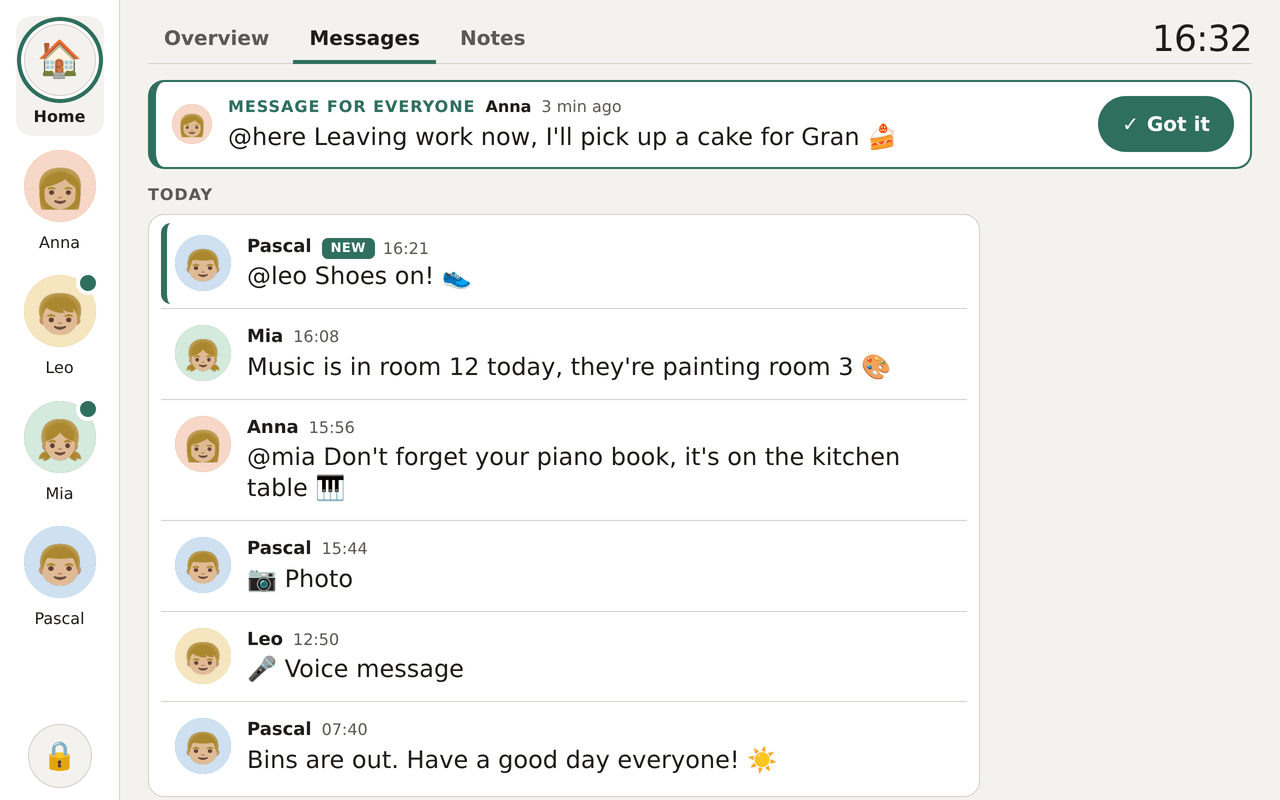
Stuck in traffic? Write “Start your homework, I’m home in 20” in the household chat on your phone, and it shows up on the kitchen board. This is off by default: the dashboard never shows chat unless an admin turns on Show household messages.
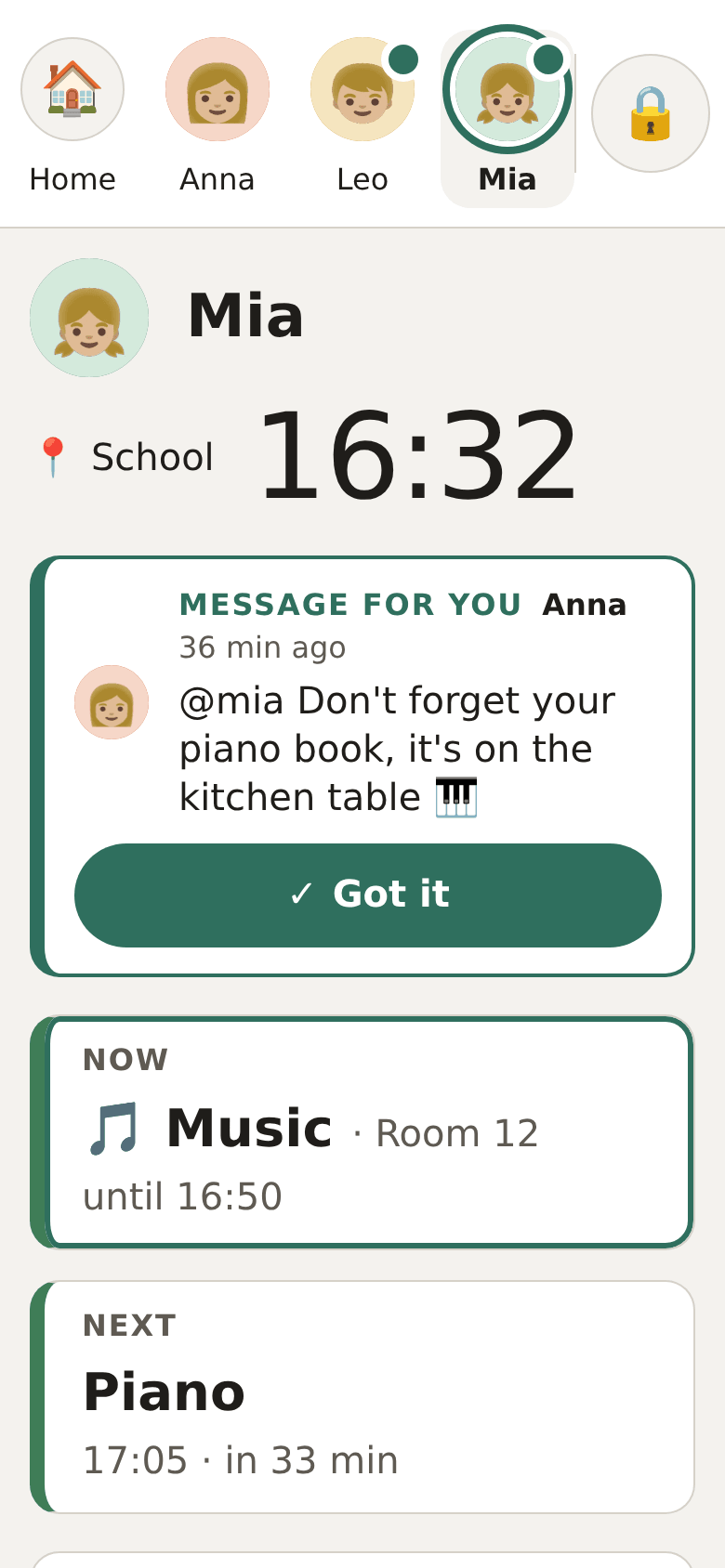
Once it’s on, the Overview shows the three newest messages from the last six hours, and the Messages tab shows the last day of household chat. Tap a message and the tablet reads it aloud, which helps kids who can’t read yet. Write @here and it becomes a banner for everyone; write @leo and a dot appears on Leo’s face and the message waits at the top of his page. Got it clears it on every tablet and adds a ✅ to the message in the chat, so the sender knows it was seen. A soft tone plays once for a new mention, never at night.
Under the hood
The dashboard only reads the chat: it never creates it and never
moves anyone’s read marker. System notices, location pins, deleted
messages and messages from hidden people are left out, and
guardian blocks are respected (a failed block lookup shows no
messages at all). Read-aloud uses only voices that run on the tablet
itself (localService === true); a tablet without one shows no 🔊,
so text is never sent to a cloud voice. “Got it” is the dashboard’s
only write: a ✅ reaction in message_reactions, checked again on
the server and limited to 30 per 5 minutes per tablet.
A page for everyone, and pictures for kids
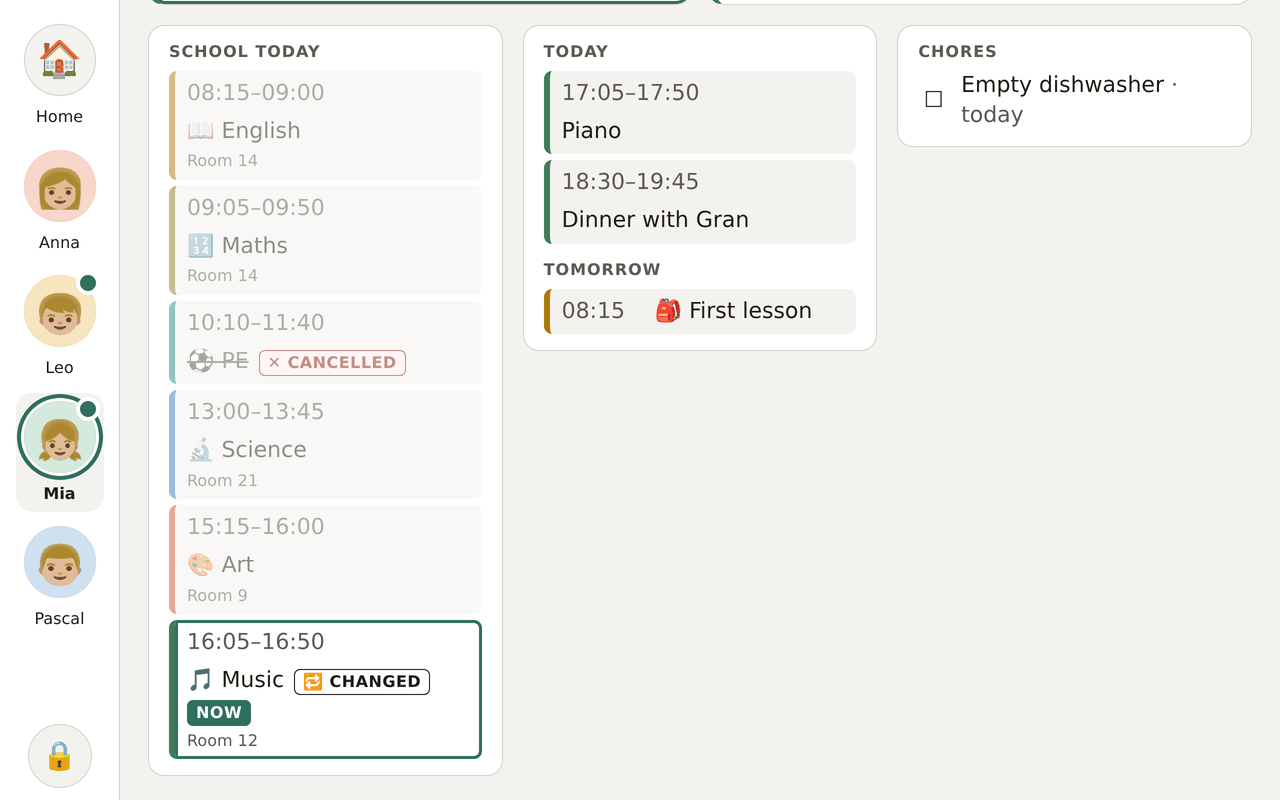
Tap a face to see one person’s day: now and next, events, chores, tomorrow, and the school timetable with what was cancelled and what moved.
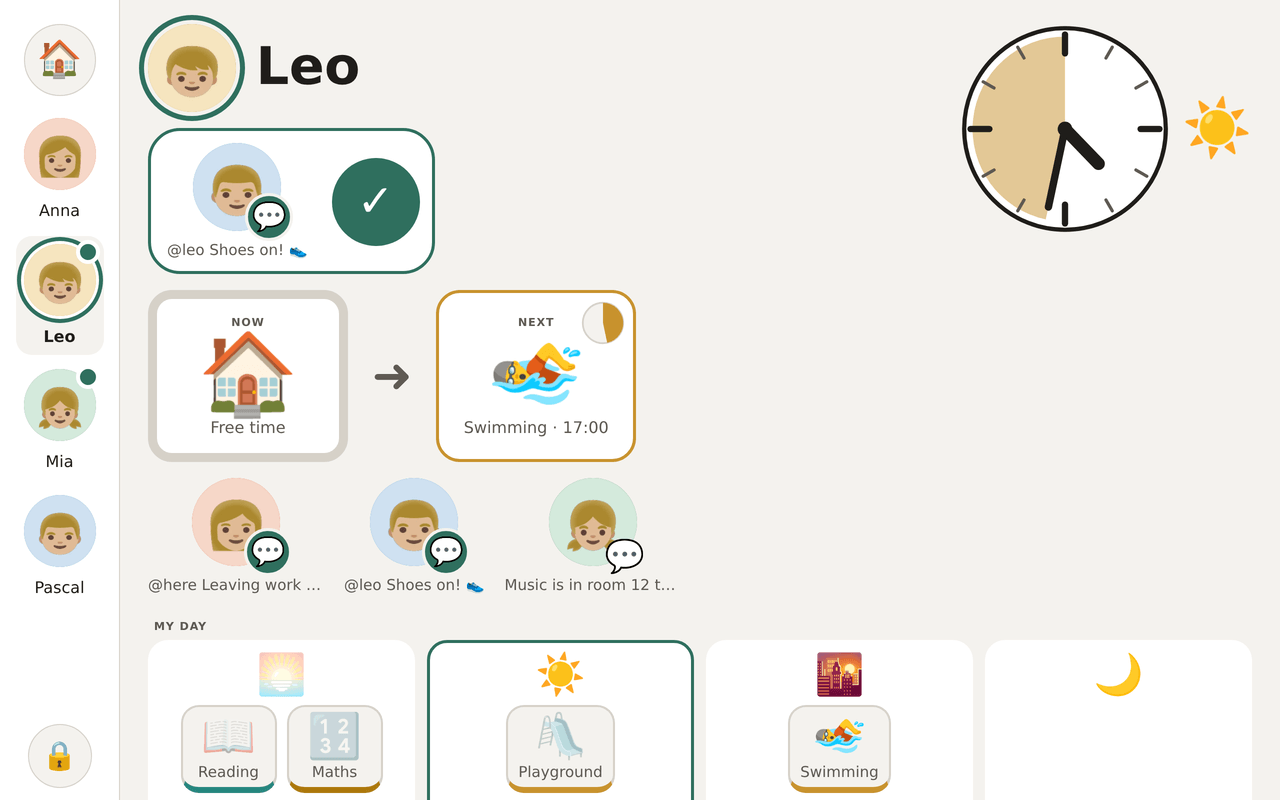
Children who can’t read yet get a picture view instead: a big analog clock with a coloured wedge that shrinks until the next thing, NOW and NEXT as large pictures, the day split into morning, afternoon, evening and night, and jobs as tiles to tick. Small captions let a grown-up read along. Picture view is on by default for protected child accounts, and an admin can switch it per person.
Night, and when guests are over
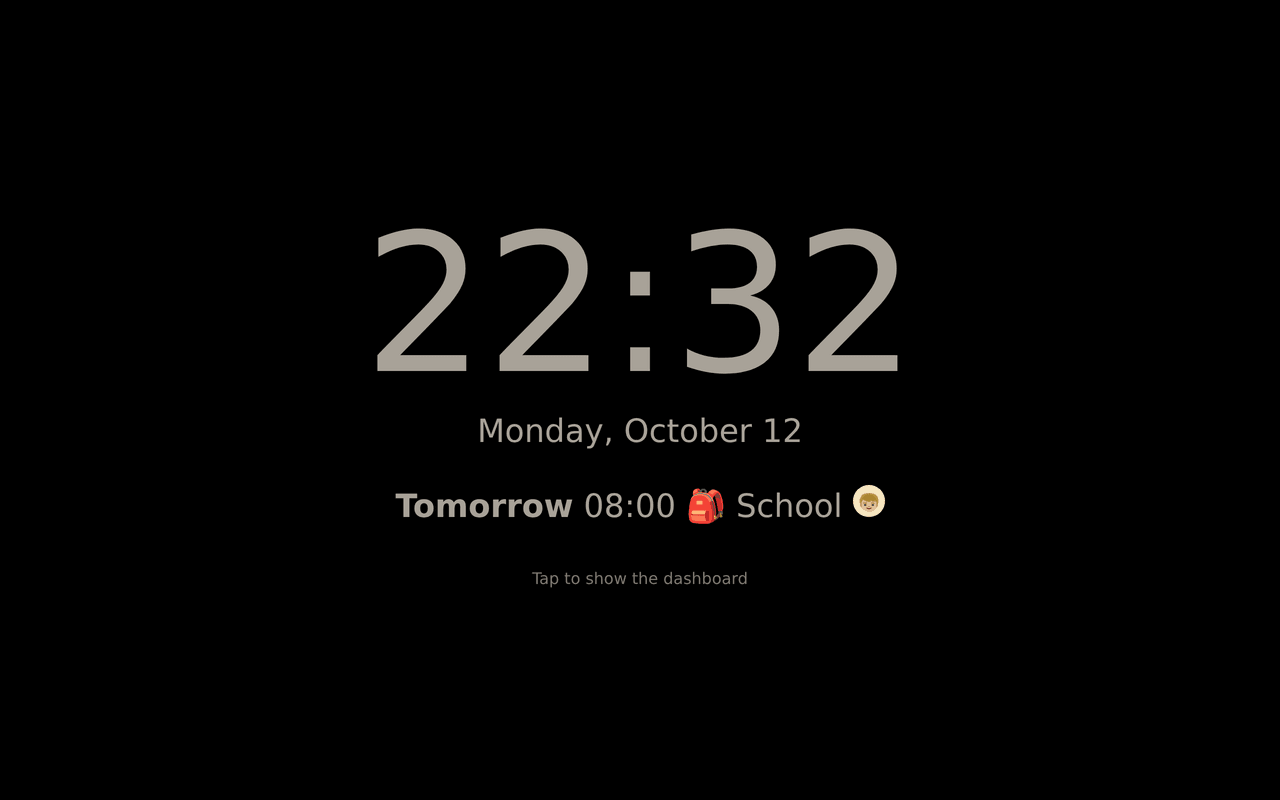
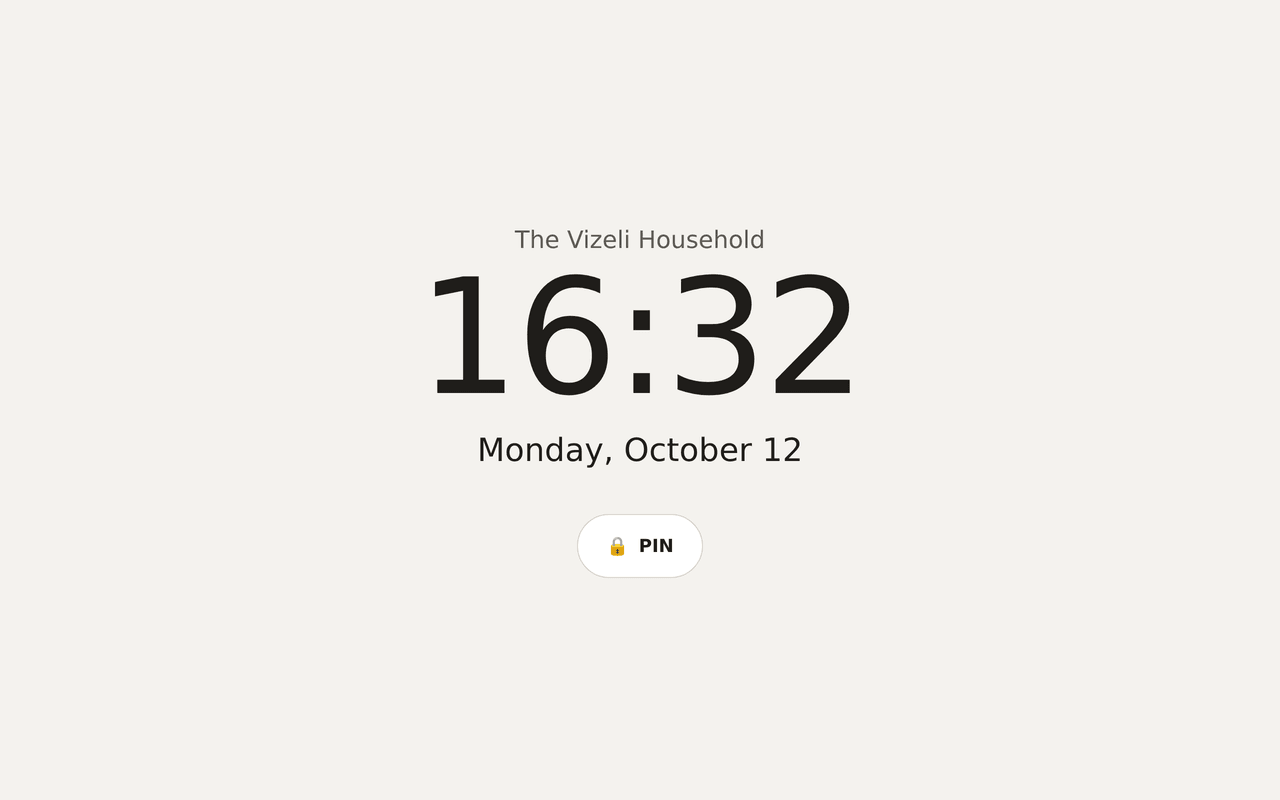
At night the board dims to a clock and the first thing tomorrow. When guests, a babysitter or the cleaner are around, one tap on the 🔒 locks the tablet to a screen with nothing personal on it: the household name, the time and the date. A 4–6 digit PIN unlocks it, and five wrong guesses sign the tablet out.
Some things never reach the wall, lock or no lock: direct messages, notifications, polls and event locations. People an admin hides from the dashboard don’t appear anywhere on it.
Setting it up
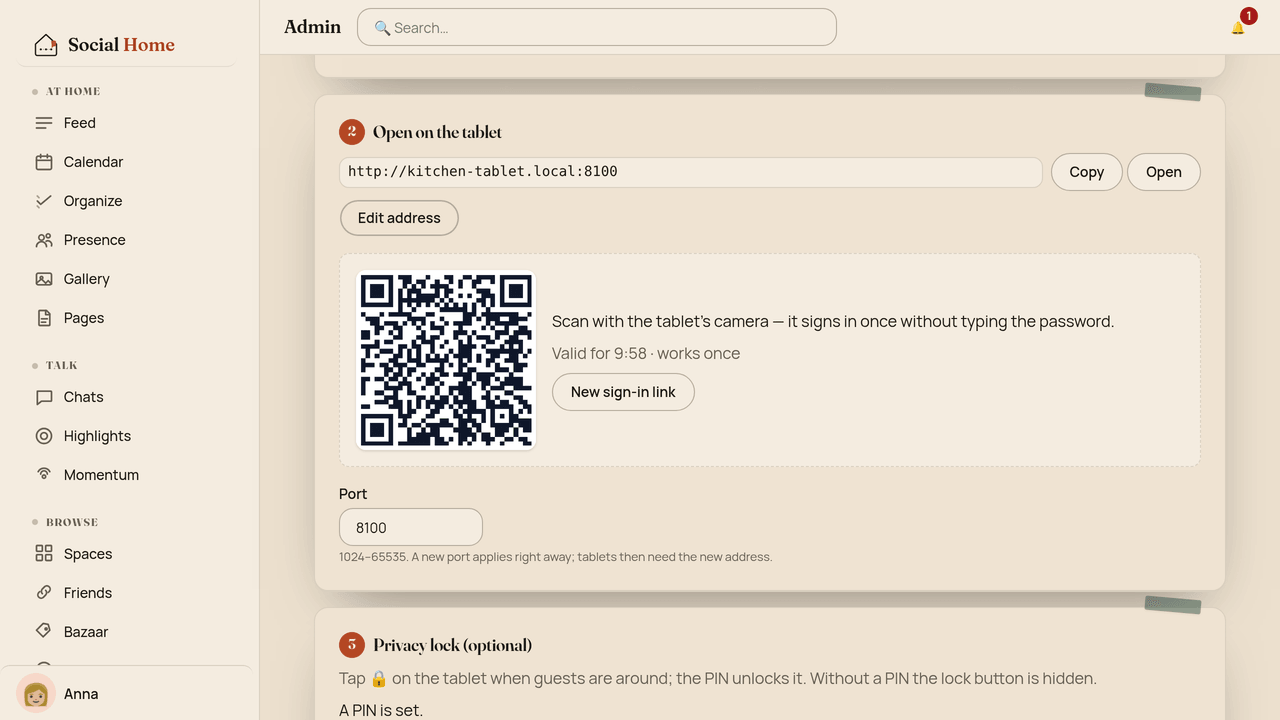
Everything lives under Admin › Dashboard, in the order you need it: set a household password, switch the dashboard on, then sign the tablet in by scanning a one-time QR code, so nobody has to type on the tablet. The same page sets the PIN, the night window, the language, which people appear and who gets picture view. Sign out all tablets is one button away.
Under the hood
The dashboard is a separate, server-rendered web app on its own port
(default 8100), meant for your home network. It never accepts the
app’s sign-in or Home Assistant ingress headers. On the Home Assistant
add-on, turn the port on under Settings › Apps › Social Home ›
Network. The household password is hashed with scrypt; tablets get
a signed cookie (12 hours, or a year with “keep this tablet signed
in”), and signing out all tablets revokes every cookie at once. The
QR token is single-use, valid for 10 minutes and stored only as a
SHA-256 hash. Logins are throttled, Host is checked against an
allow-list, and the pages ship a strict CSP with no third-party
requests.
Zones: the places your household knows
A zone is a named place with a radius: Home, School, Work, Gran’s. When someone is inside one, the household sees them there by name, on the map and in the member list, instead of a dot on a street.
Admins manage them under Admin › Zones. Home always comes first and can’t be deleted; to move it, mark another zone as Home. Each zone can carry an emoji, picked from a dozen place presets or any other emoji, and lists sort A–Z. When a phone shares a location without naming a zone, Social Home works out the zone itself.
Your zone names never leave your home. They aren’t sent to paired households or to any space.
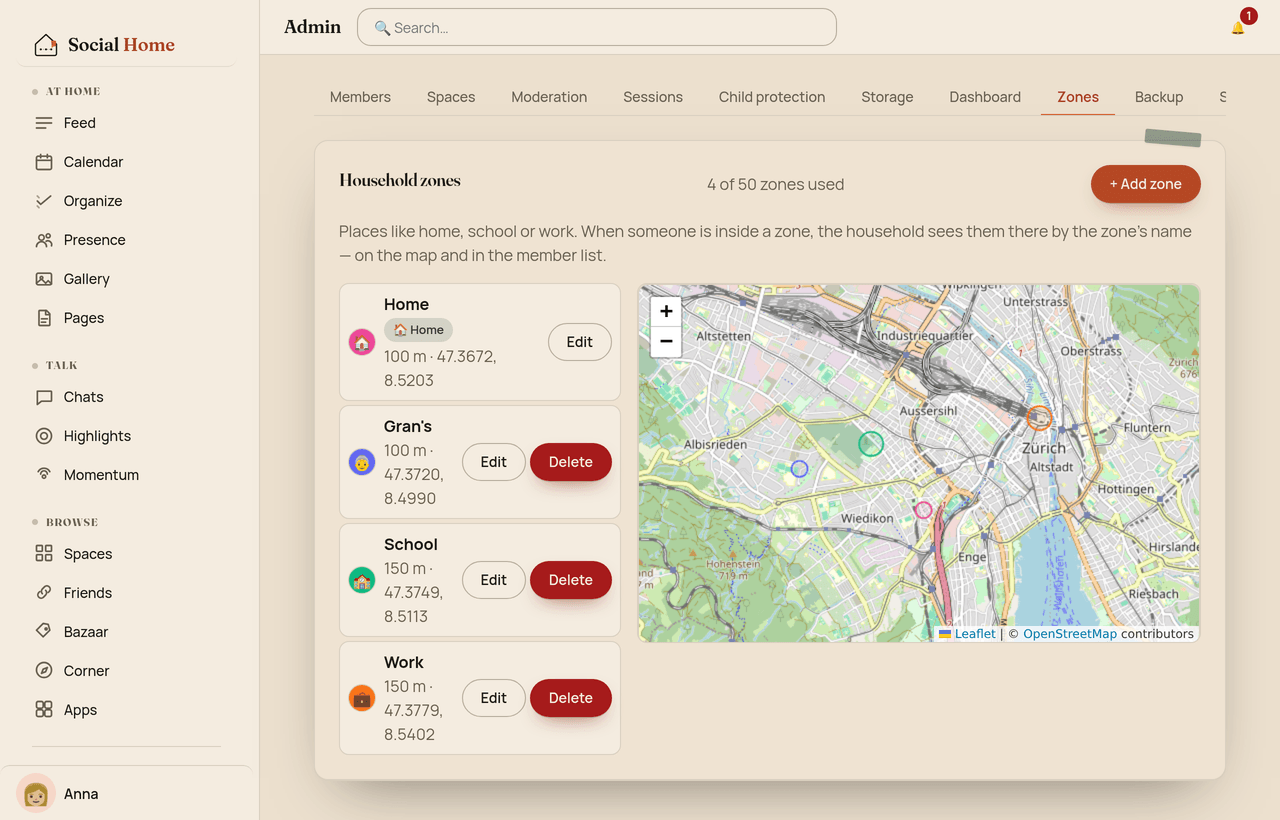
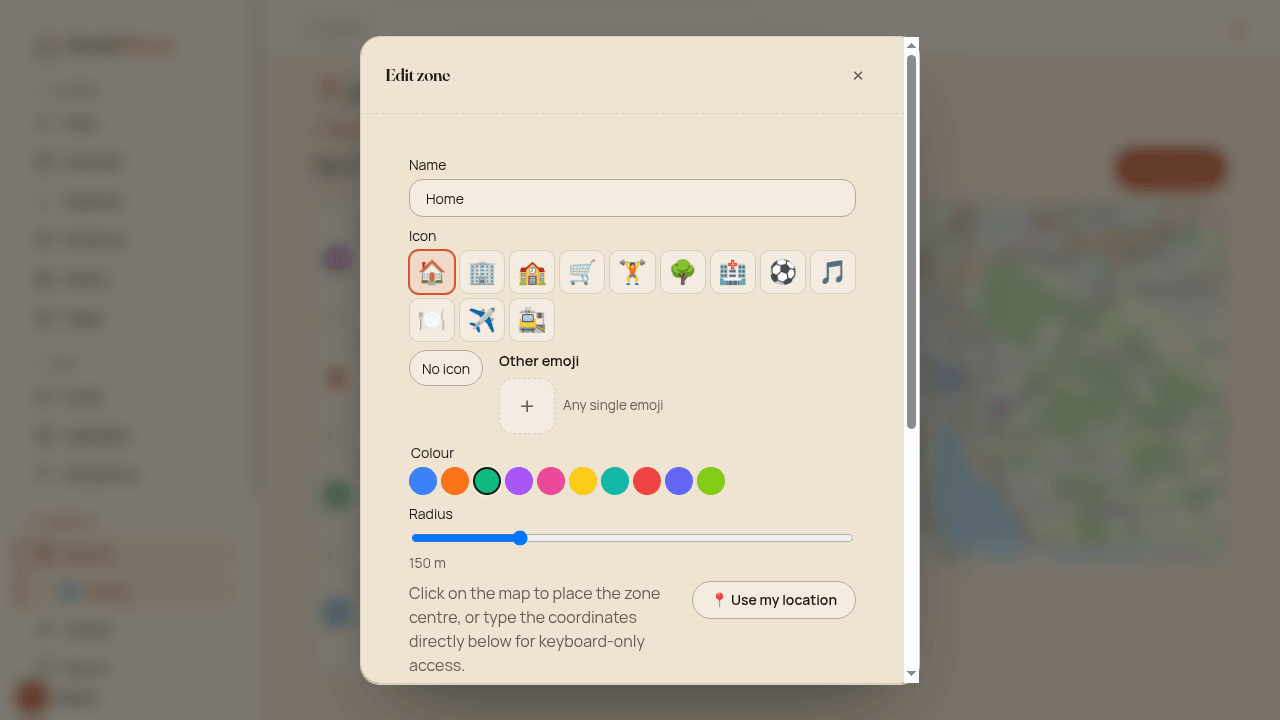
Already have zones in Home Assistant? If you installed Social Home through Home Assistant, it can mirror them: switch on Sync zones from Home Assistant, and its zones appear in the list, marked From Home Assistant and kept up to date. You edit those in Home Assistant; zones you add in Social Home stay yours. Turning the sync off asks first, then removes only the synced zones. And if Home Assistant is restarting or can’t be reached, nothing is removed.
Spaces have had zones of their own for a while; they now get the same emoji icons.
Under the hood
Household zones live in a local-only household_zones table that is
never federated, with up to 50 zones, a radius of 25 m to 50 km and
at most one Home zone. A protocol test checks that a household zone
name never appears in federation fan-out, space WebSocket frames or
GET /api/spaces/{id}/presence. Zone matching on a shared GPS point
runs only when the app named no zone, so Home Assistant stays the
authority for who is in which zone.
The sync reads zone.* from Home Assistant’s GET /api/states at
startup and every 5 minutes: passive zones are skipped, zone.home
becomes Home, and mdi: icons map to emoji. An answer without
zone.home means Home Assistant is still starting, so that run is
skipped. Space zone icons travel as an optional icon field; older
households simply ignore it.
A map that reads like a list
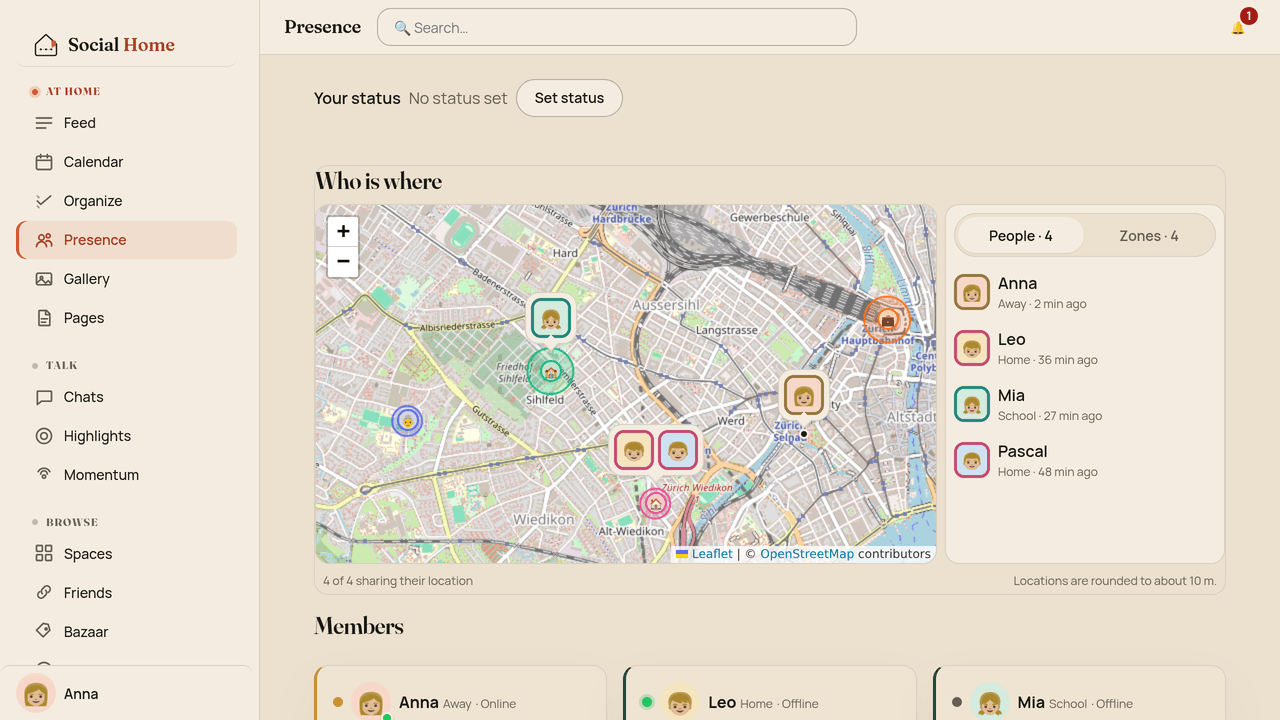
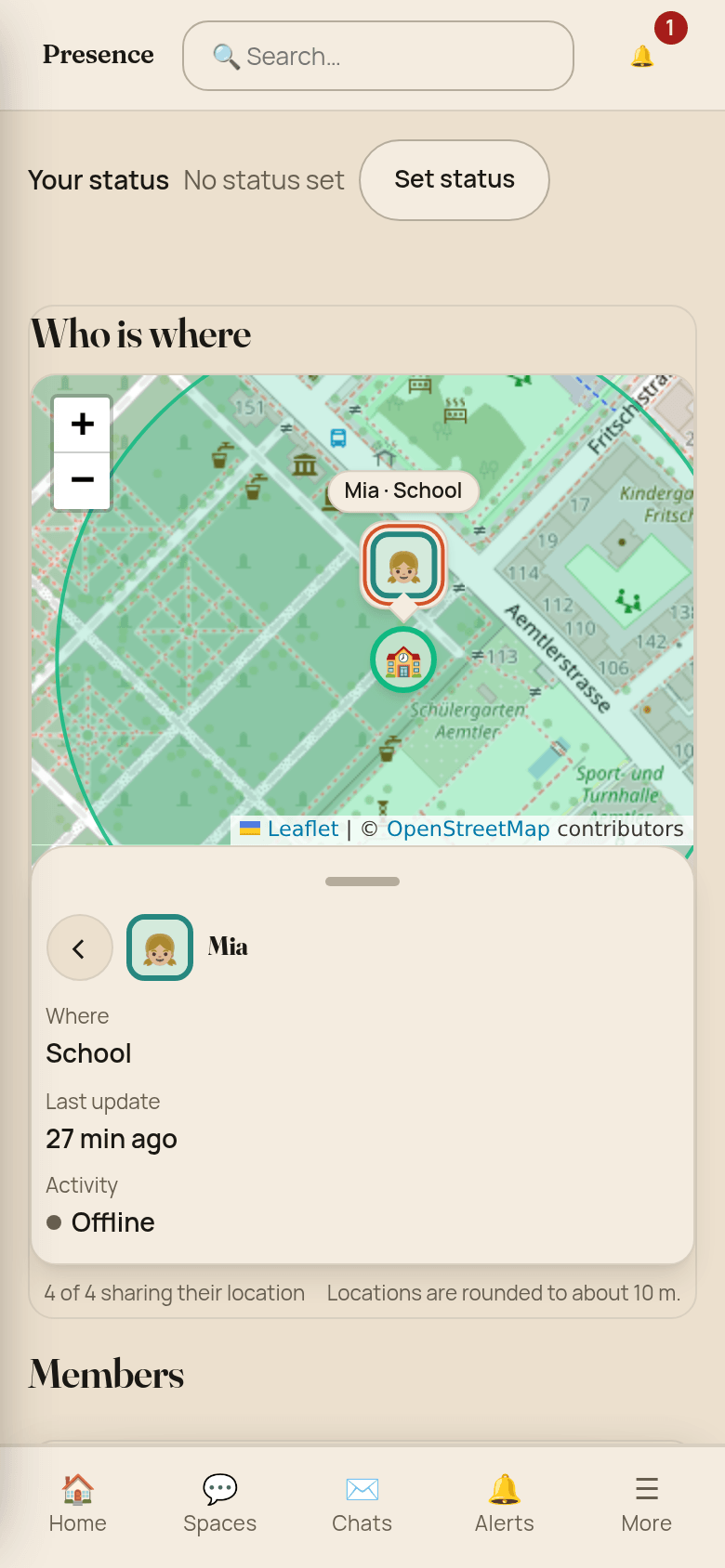
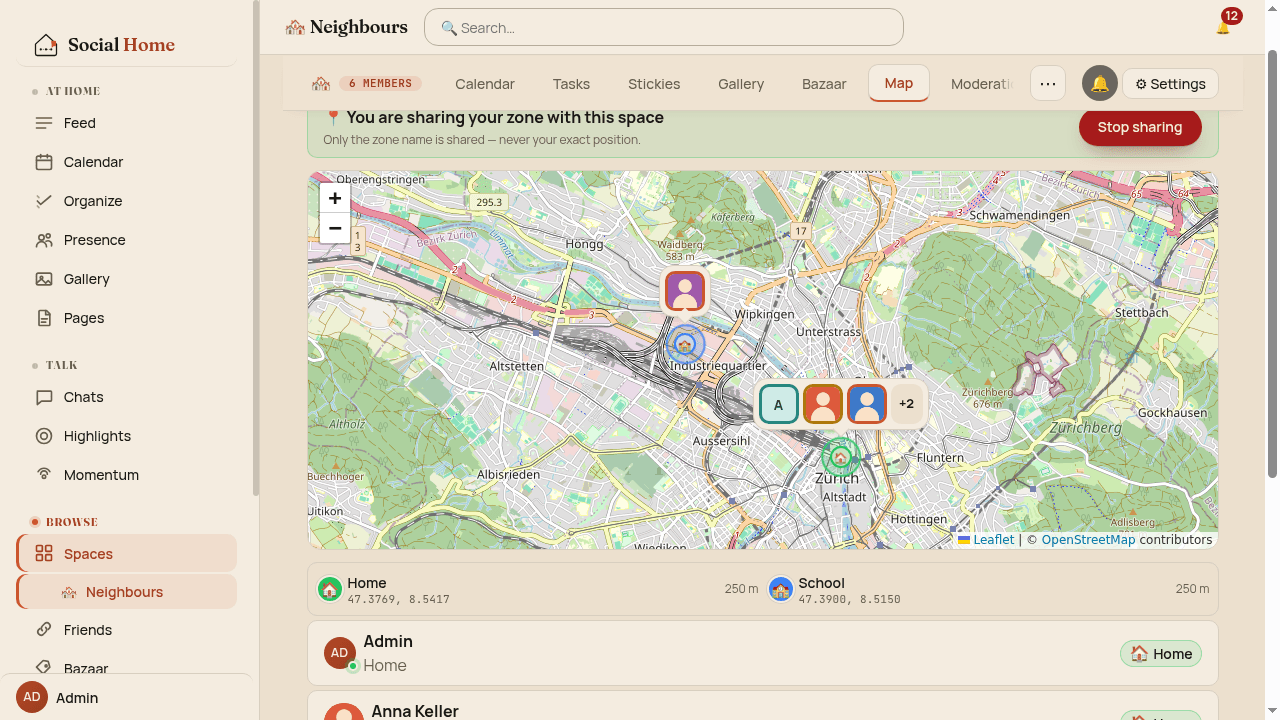
The map in the app is redone, in the style of Home Assistant’s new map. People are photo markers framed in their own colour. Everyone in the same zone shares one bubble at the zone, with up to three faces and a “+N”; nearby bubbles merge as you zoom out. Each zone shows its emoji at its centre.
Next to the map, a People and Zones panel says it in words: pick a person to zoom to them and see their zone and when they last updated, or pick a zone to see who’s there right now. On a phone the panel is a sheet you pull up. Social Home keeps no location history. It only knows where someone is now.
The same markers are used on a space’s map. In a space set to share zones only, members appear at the centre of a zone the space defined, never at their real position.
Who’s where, on the wall
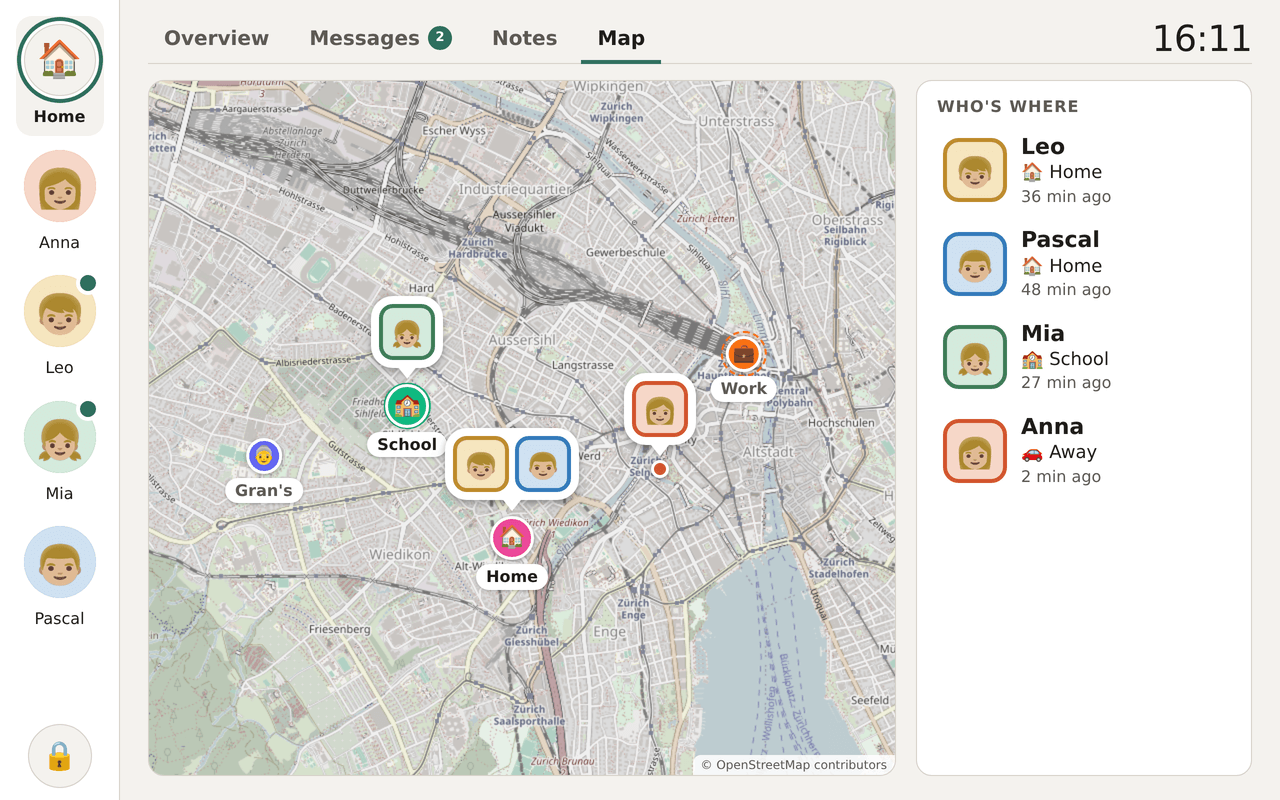
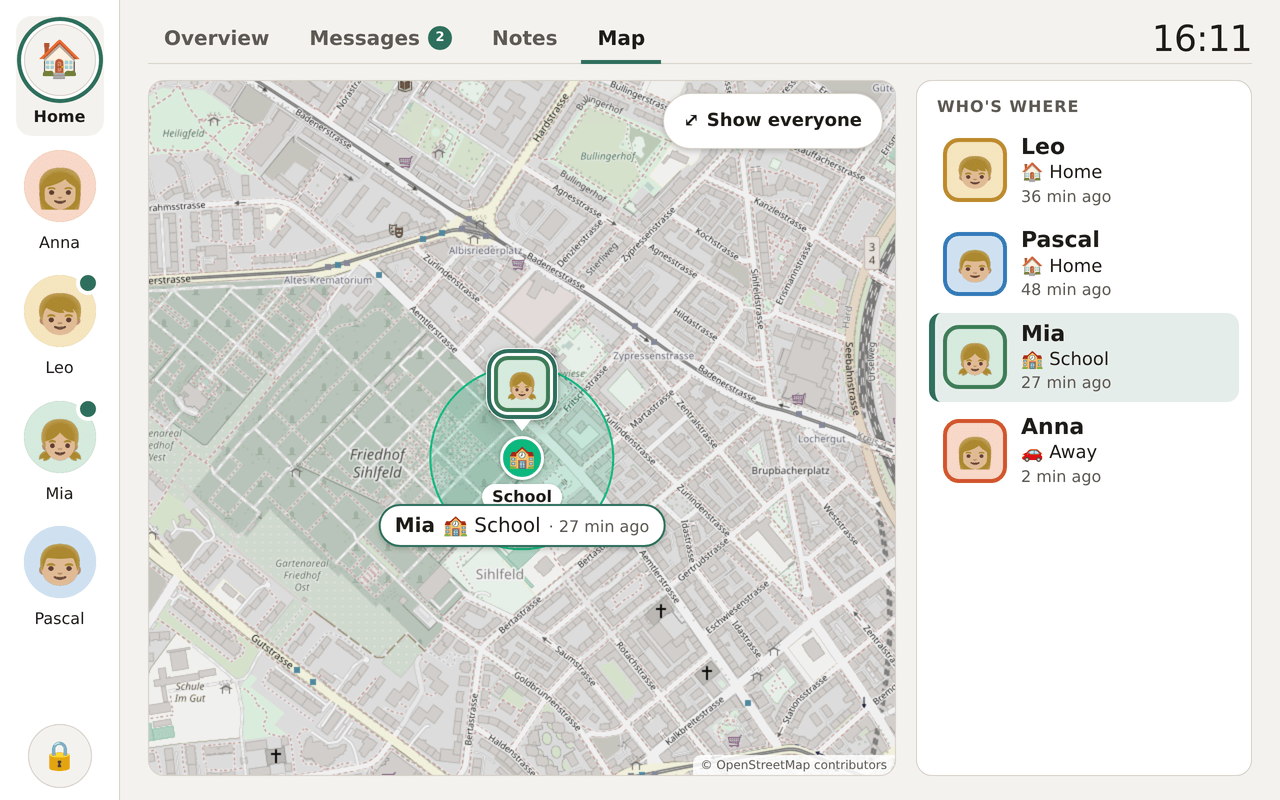
All of this comes together on the kitchen board: a Map tab next to Overview, Messages and Notes. Faces gather in their zone’s bubble, and a Who’s where list on the side reads at a glance: “Leo, Home, 36 min ago”. Tap a person and the map zooms in with how fresh their location is; Show everyone or a minute of no touches brings the whole family back.
The tab only appears while someone in the household shared a location in the last day. A location older than an hour fades and says “last seen”; after a day the person drops off. Under the privacy lock and at night the map is hidden like everything else.
Under the hood
The wall map shows positions rounded to about 11 m (4 decimal places),
the same as the app, and only to the household’s own dashboard. Map
tiles are fetched through your own server at /tiles/{z}/{x}/{y}, so
the tablet makes no outside requests. Tiles need a dashboard session
(401 without one, 423 while locked) and are served private, no-cache, so a locked tablet can’t show cached tiles. No map library
runs on the tablet: a small script lays out the tile grid and retries
failed tiles with backoff, from 30 s up to 10 minutes.
What’s next: the dashboard on ESPHome
A tablet isn’t the only screen that fits on a wall. Next, we’re working on an ESPHome version of the dashboard, so the household board can run on an ESPHome device too.
Try it
The household dashboard and zones are in Social Home 2026.10.13. Turn the dashboard on under Admin › Dashboard, set up your places under Admin › Zones, and hang that old tablet back on the wall.