Blog The Social Home team
Organize, redesigned: tasks, shopping and sticky notes
A real task board with drag and drop, a shopping list with Undo, and a sticky-note wall that works on phones. All in Social Home 2026.10.2.
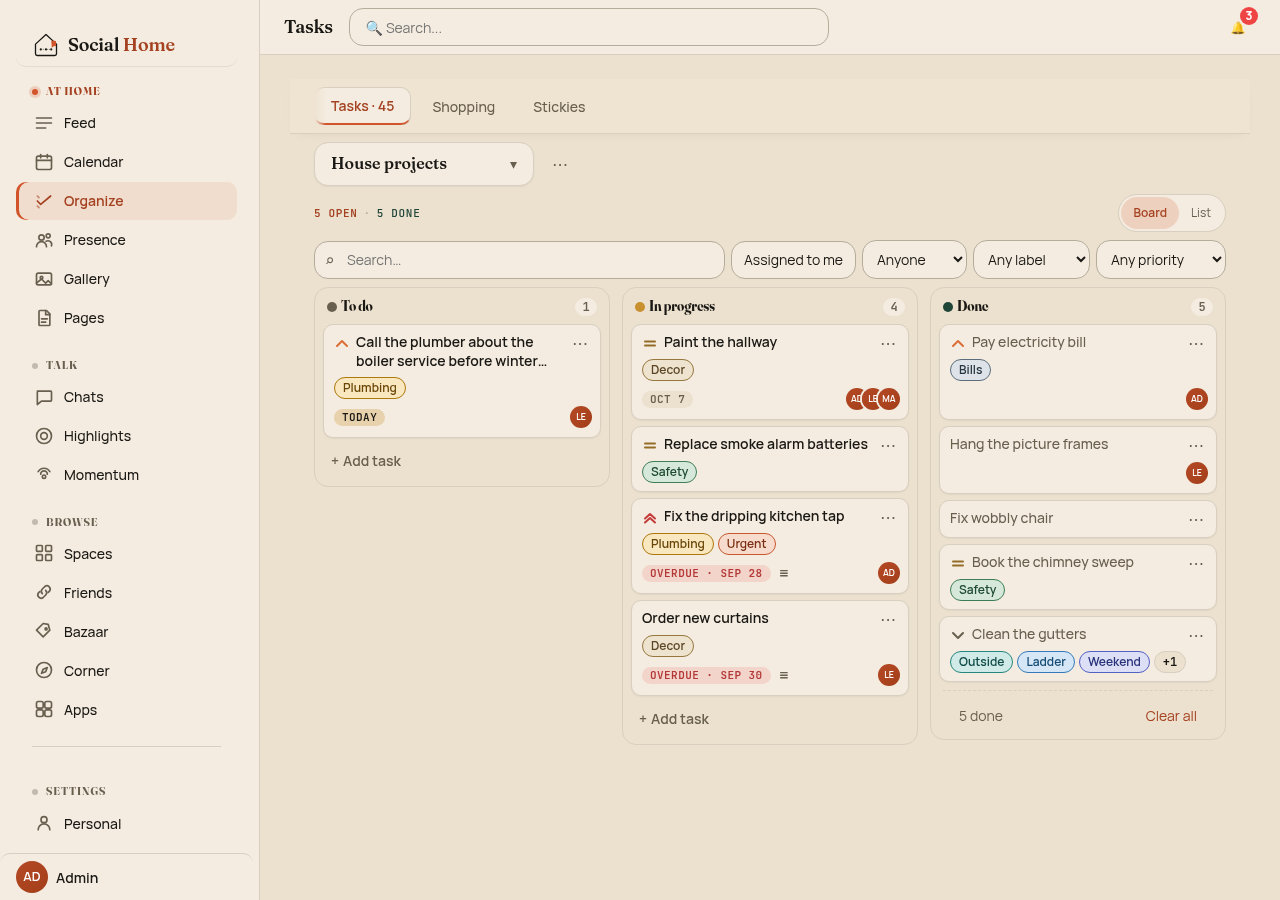
Organize is where a household keeps its everyday promises: call the plumber, buy milk, don’t forget the bins on Thursday. In Social Home 2026.10.2 all three tools got a full overhaul, from the database up to the last pixel. We’re really happy with it.
Tasks, Shopping and Stickies now share the same building blocks: one quick-add bar, one loading skeleton, one error card with Retry, one Undo toast. They look alike, behave alike, and every control has a 44 px touch target on phones.
All screens below show sample data.
Tasks become a board
Tasks now live on a board with three fixed columns: To do, In progress and Done. Each card shows its priority (None to Urgent), up to three labels, one due chip (red once overdue) and who is on it. The List view is still one click away if you prefer a plain checklist.
Moving a card works the way your hands expect:
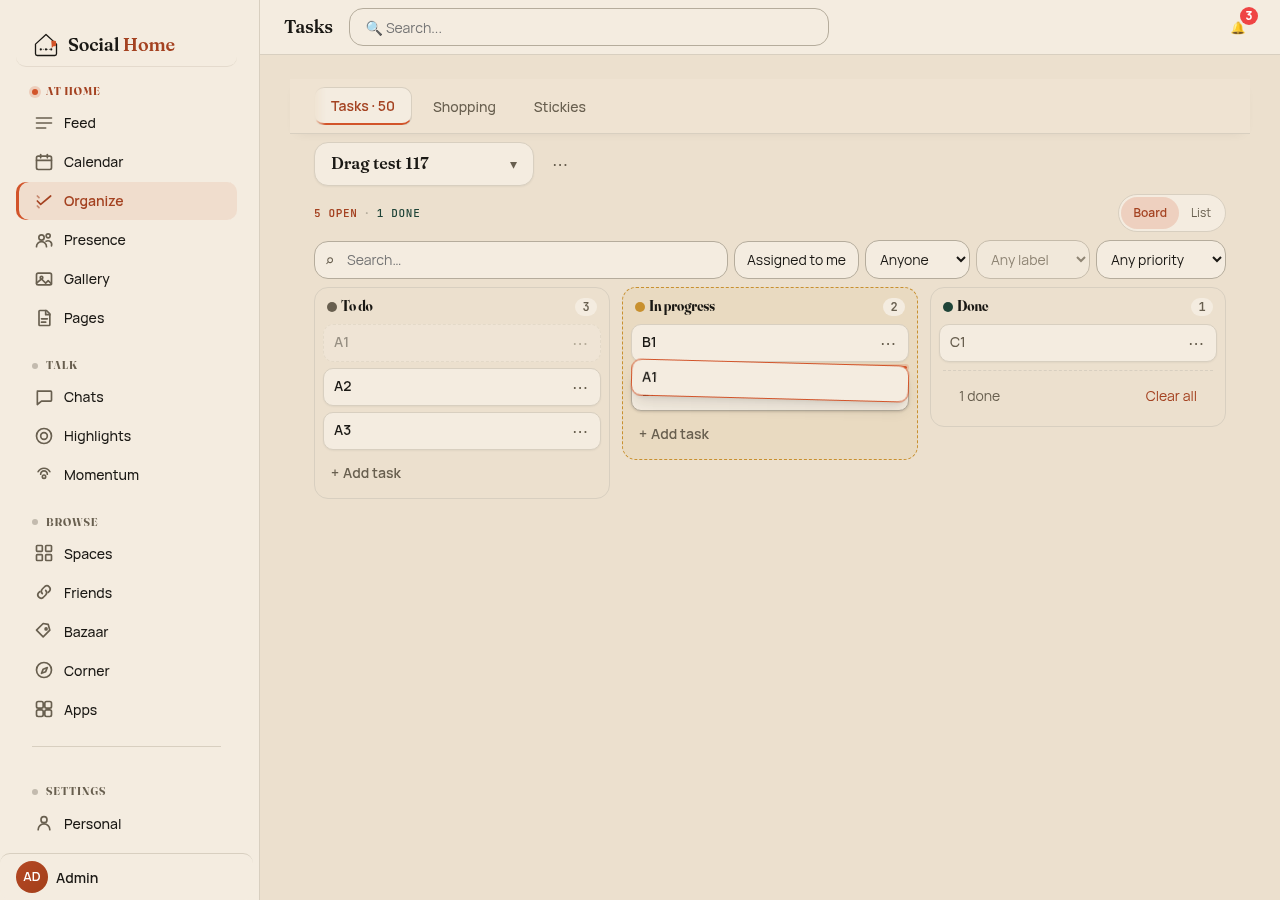
- Mouse: drag it. A ghost card and an insertion line show where it lands, and the board scrolls at the edges.
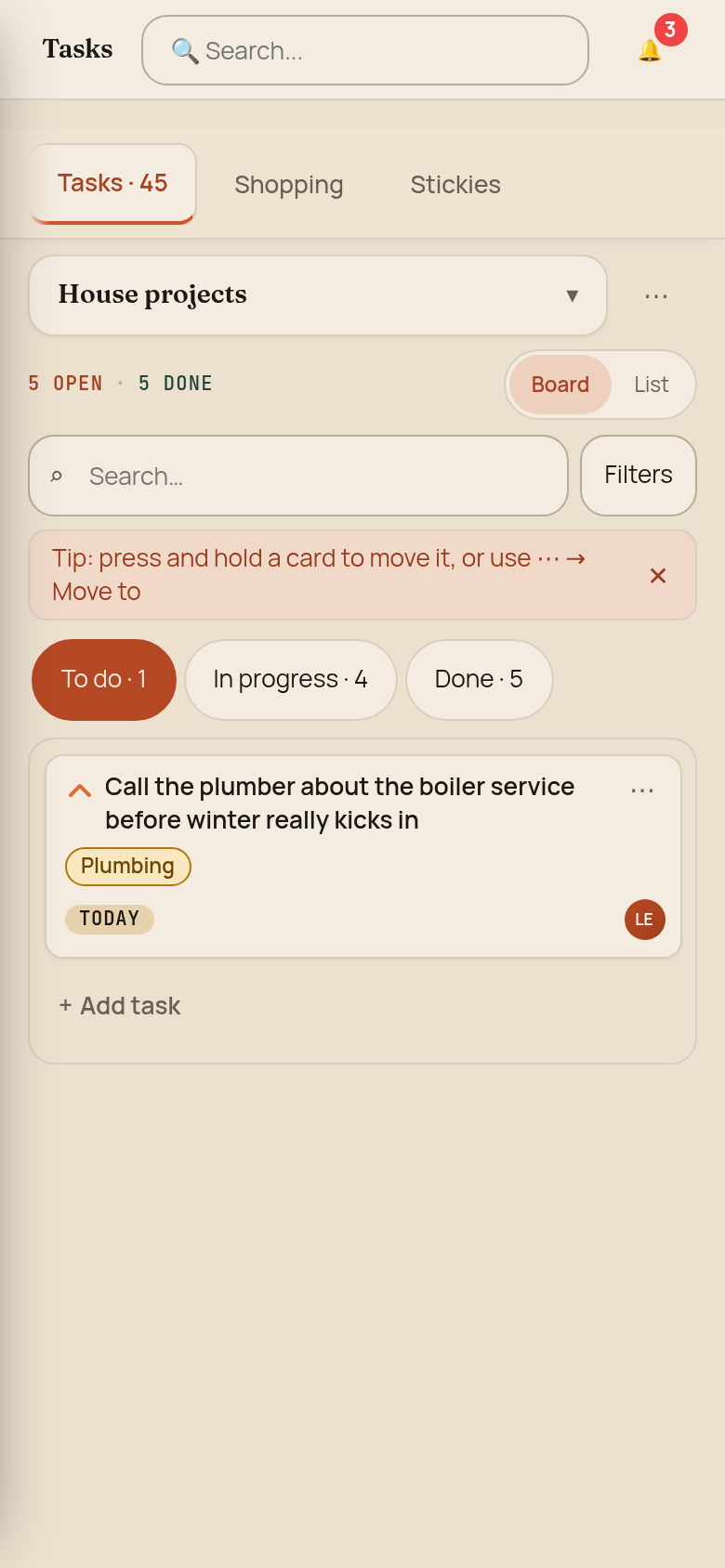
- Touch: press and hold, so normal scrolling still works.
- Keyboard: Alt + ←/→ changes column, Alt + ↑/↓ reorders, and every move is announced to screen readers.
If something fails along the way, the card snaps back and tells you why. Two quick drags in a row never get in each other’s way.
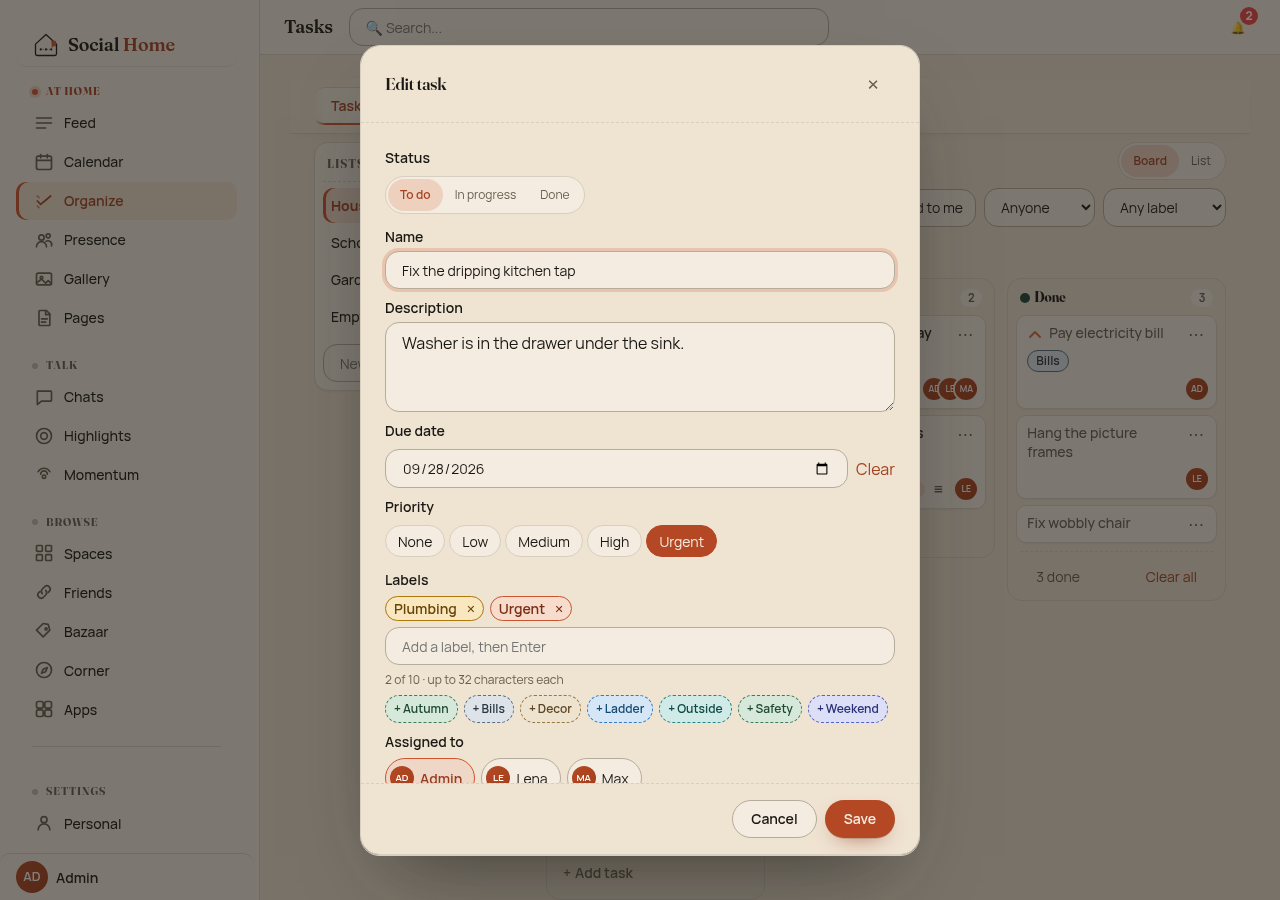
Label colours are derived from the label’s name, so they cost no extra storage and nothing extra on the wire. Edit rights are clearer too: the creator, an assignee or an admin can change a task. Everyone else sees a 🔒 instead of a button that fails.
Under the hood
A mouse drag starts after 4 px of movement; on touch, press and hold for about 300 ms. A move sends at most two requests: a status change when the column changes, then a reorder that names the moved card. Moves are queued per list, so two quick drags never collide.
A shopping list that keeps up
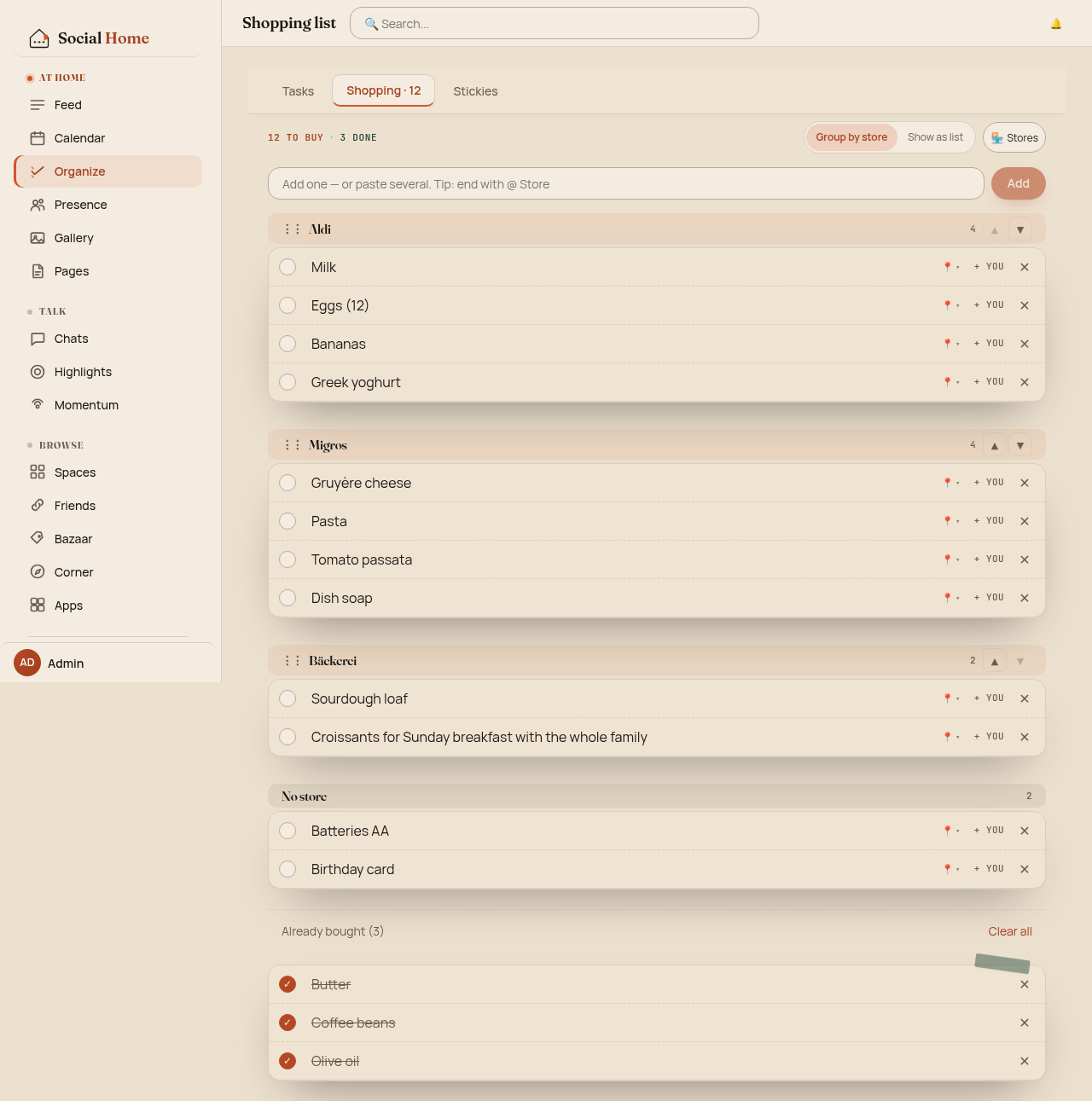
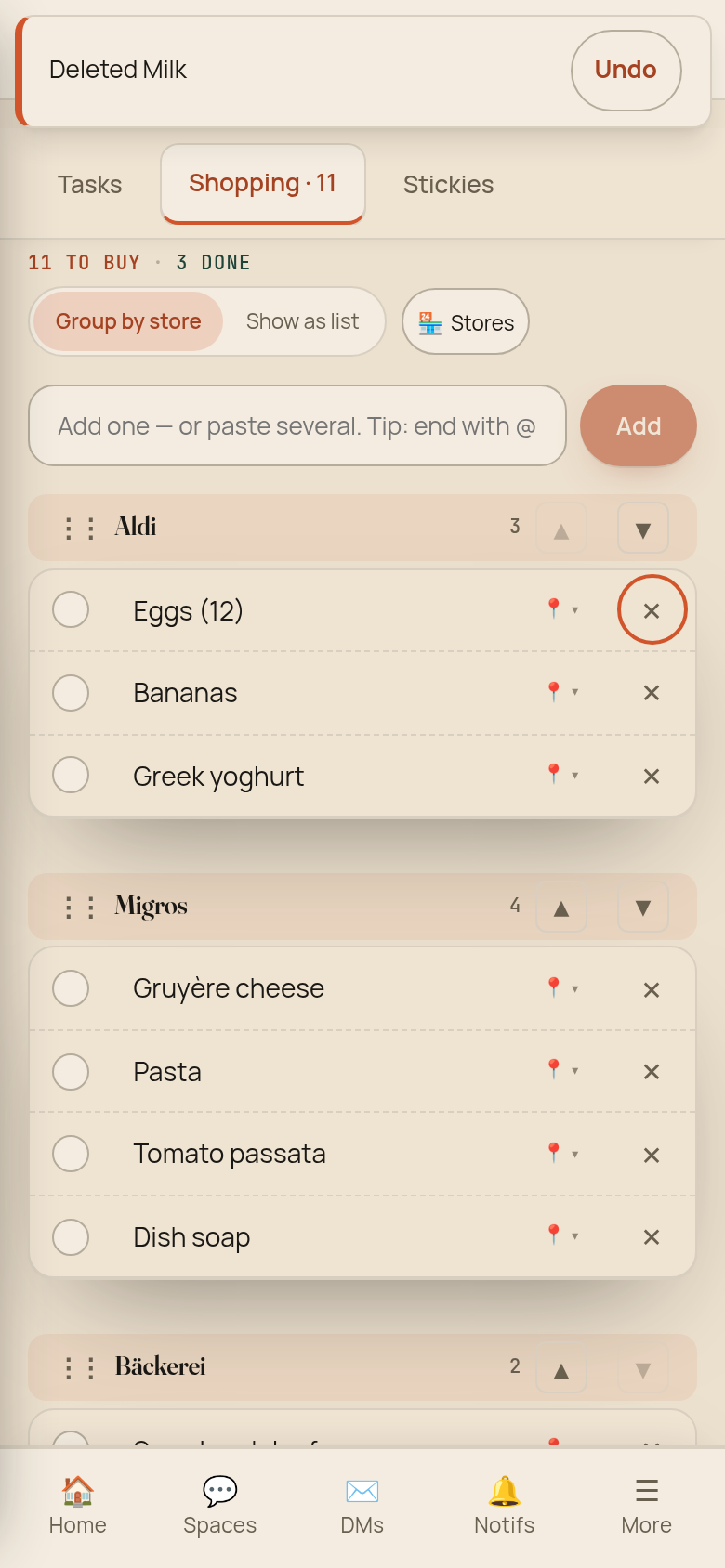
The list groups items by store, or shows them flat. Paste several
items at once and end a line with @ Store to file it in the right
place. Bought items move to the bottom, greyed out.
Deleting is now instant, with Undo. The trick: the delete only goes to the server once the toast expires, so Undo never has to re-create anything. Clear all removes exactly the items you saw disappear, not the one you ticked a second later.
Sticky notes, on every screen
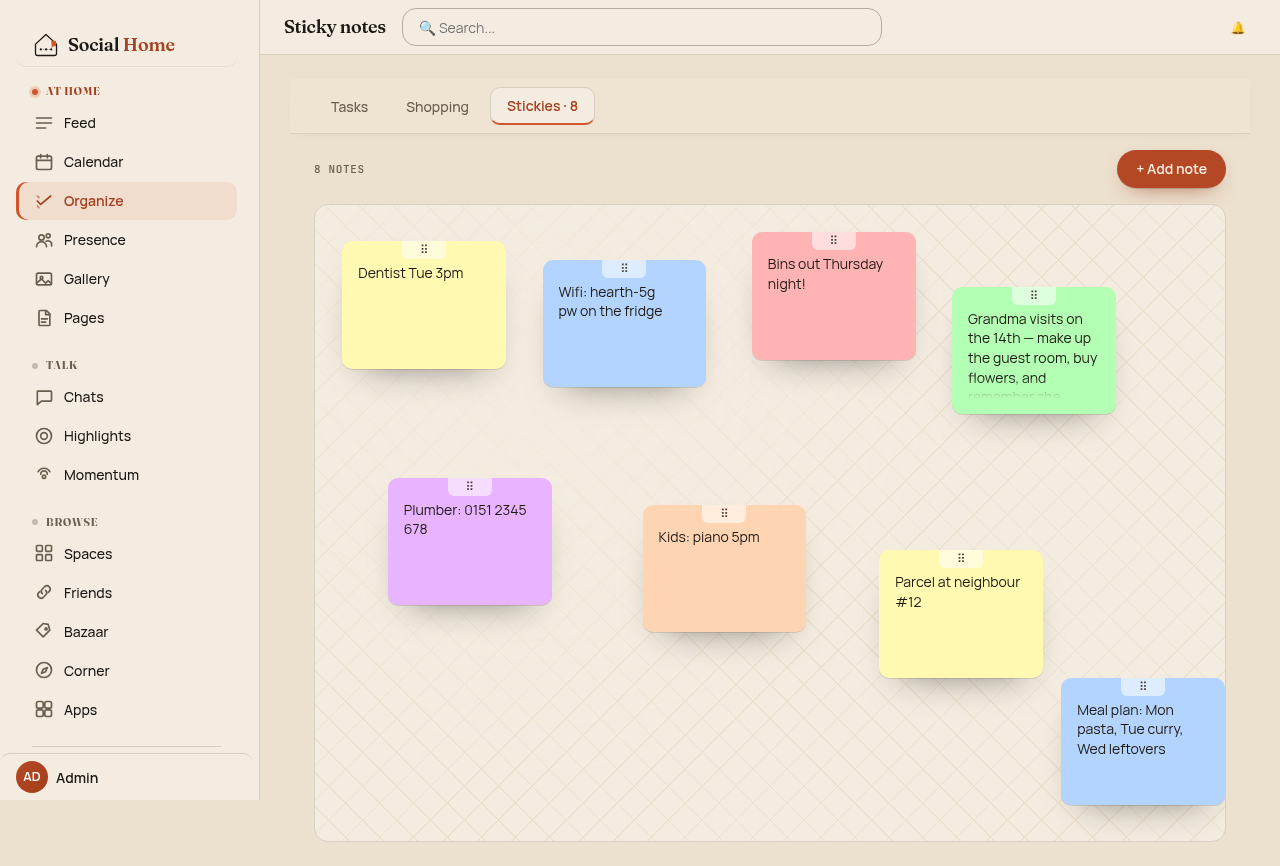
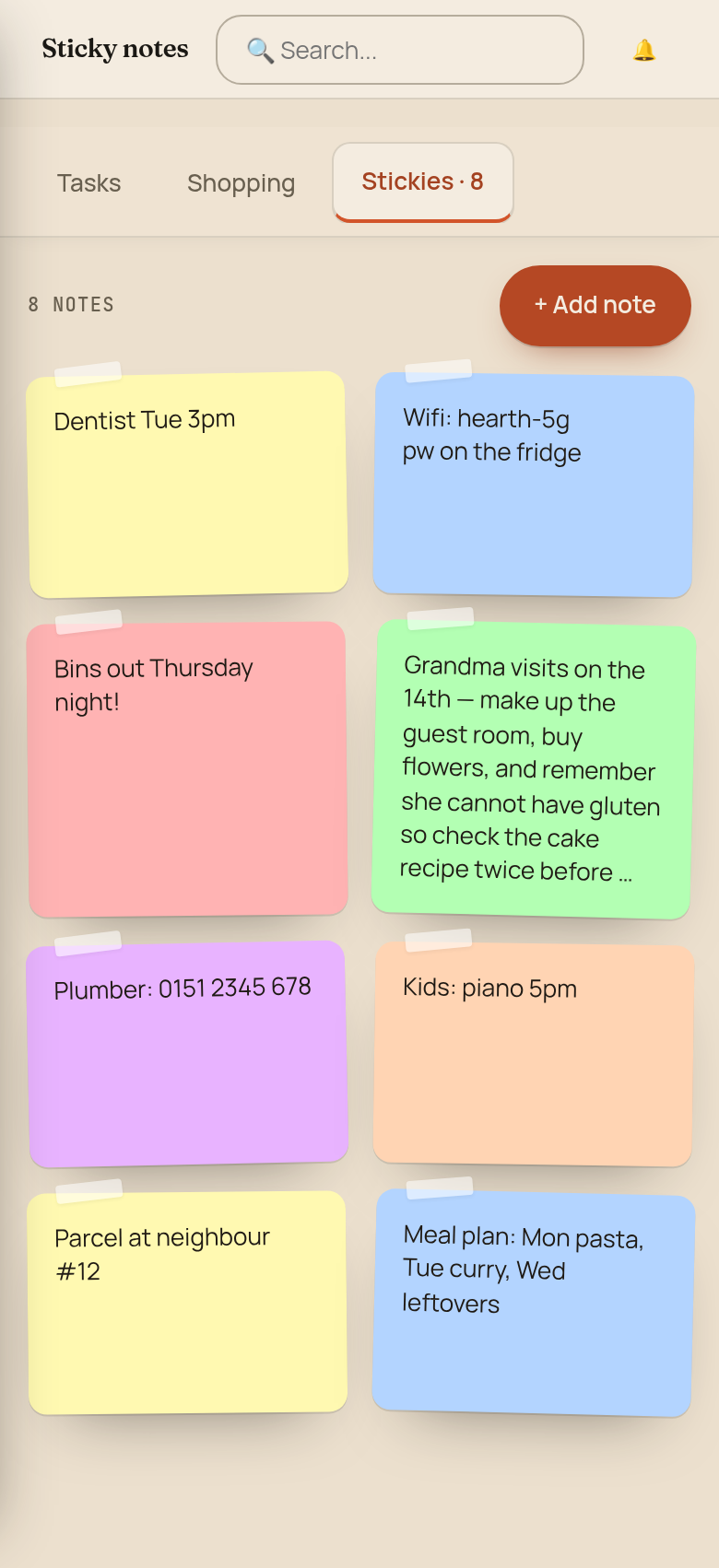
The sticky wall is still your household’s fridge door, and now it works on phones too. Only the tape grip captures touches, so swiping the board scrolls the page. Notes size themselves to the board. Below about 760 px of board width they become a tidy grid in reading order, and their stored positions stay untouched for the big screen.
Notes move by their grip or with the arrow keys (Shift moves five times as far). Colours have names now: Yellow, Coral, Mint, Sky, Lilac and Peach. Pick a dark custom colour and the text switches to light ink by itself.
Safer, and faster too
Reviewing the old code turned up a few things we fixed along the way:
- Space tasks and sticky notes stay inside their space. A task or note from one space can’t be reached from another, not even by guessing its address.
- A note’s colour can’t phone home. Before, a crafted colour could make every member’s browser fetch an outside image and give away their IP address. Now a colour is just a colour.
- Organize opens faster. The “Tasks · N” count on the sidebar no longer loads every list to count them.
And everything is translated into English, German, Spanish, French and Dutch.
Under the hood
Every space-scoped request is now checked against the space in the
URL; a note or task from another space answers 404, exactly like one
that doesn’t exist. Sticky-note colours must be a plain #RRGGBB
value, so a colour can no longer smuggle a url() into a style. The
“Tasks · N” count comes from a single grouped query instead of one
request per list.
Try it
The new Organize is part of Social Home 2026.10.2. Update the add-on in Home Assistant and open Organize. New to Social Home? Getting started takes you from Home Assistant to your first household in a few minutes.